
Notion and AI are moving so fast with changes and new features that I find it challenging to keep up. Worse, because I specialize in automations and integrations with Notion, the landscape I play in has grown exponentially more complicated.
Although Notion is an amazing tool, I fear that the learning curve to mastery keeps getting steeper. So I wanted to answer three simple questions:
- What are the elements of Notion and AI as it relates to automating your business?
- How does Notion interact with external tools and systems?
- Can I cancel my stand-alone subscriptions to AI services and use Notion instead?
My hope is that by mapping this out in a logical way, it will be easier for you to know which components you should use and when, in order to solve your own challenges.
This is not a how-to article. It’s about looking at the big (confusing) picture, then rebuilding it from elements that are easier to understand so that we see how everything fits together.
Notion
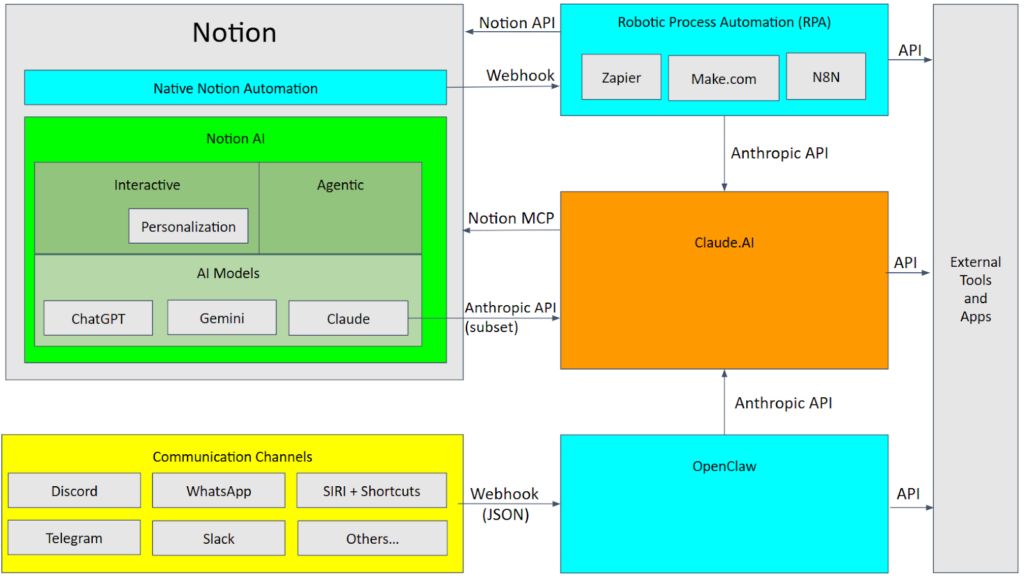
This is our starting point. It’s all of the known blocks, databases, references, and what we’ve come to love about Notion. If you’re just getting started with Notion, check out Notion Fundamentals, by Thomas Frank. This article is going to focus on AI and automation. For the longest time, our ability to automate natively within Notion was rather limited, unless we turned to RPA
Robotic Process Automation (RPA)
There are a slew of tools for process automation. Three of the bigger ones are Zapier, Make.com, and N8N. Zapier is easier to use for people with no understanding of coding. N8N is more powerful, but requires an understanding of scripting languages to maximize its utility. Make.com sits in the sweet spot in the middle.
For all three of these, you would talk to Notion (or any external tool) by means of an API, which Notion makes publicly available. The down-side was that to respond to Notion events, you had to check periodically to see if there was anything to do (polling).
Native Notion Automation
Some time later, Notion gave us “Formulas 2.0” with advanced functionality, including the ability to fire WebHooks. That’s a way for one program to make a call over the web to another, including passing data (the payload) to the recipient program. This lets our RPA automations trigger in response to events that happened from inside Notion, such as adding a new record to a database, and then executing the external automation in near real time.
To make it easier to manage a library external scripts that we triggered from native automation, something like the Automation Framework for Notion allows us to select the name of our external scripts directly from Notion.
Notion AI
Some time later, Notion started releasing AI features, and it seems that more are coming every week. Unfortunately, “Notion AI” is a huge bucket, and it’s important to understand the different elements that are inside, as well as how and when to use each one. It does not help that the names given to the elements appear to change periodically.
Nosey, Personal AI, Interactive AI 
This is the character in the lower right of your Notion window. You click Nosey, it knows your current page for default context, and you can start entering prompts, including @References to other pages.
Inline AI Blocks
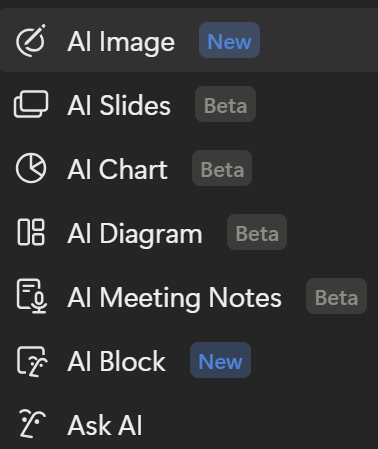
On any page, you can type /AI and a menu of AI blocks comes up that you can place on your page. These blocks perform their AI function, after which they become mostly static content that you can refresh on demand.
Personalized Agent
At some point, the amount of context we needed to feed into Nosey became too cumbersome. We needed a way to enter a generalized context under which our subsequent prompts would operate. For that, we got Agent Personalization. This was about way more than just changing the way Nosey looked
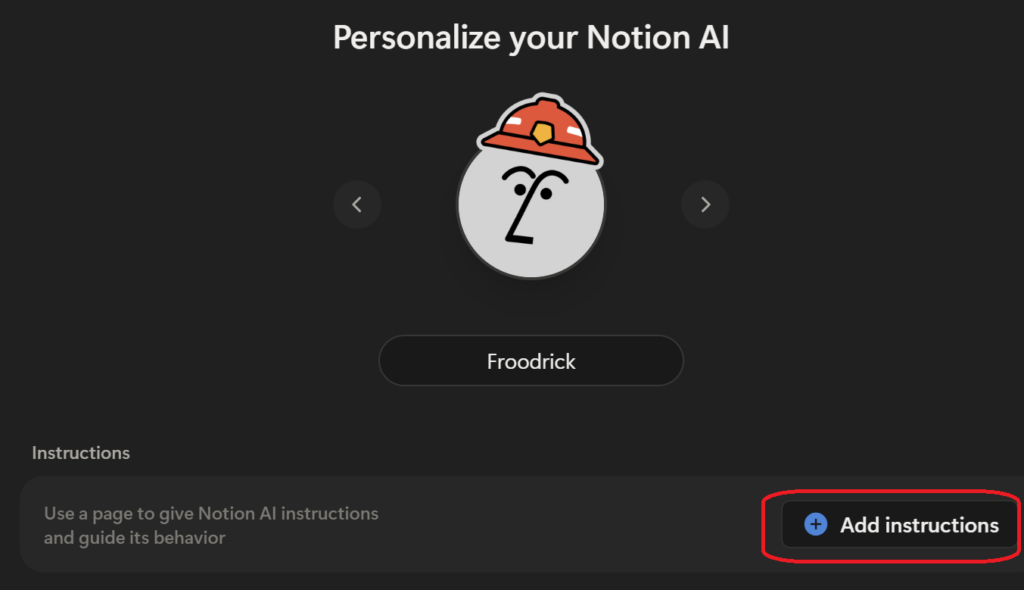
This made our AI much more powerful because our instructions could be more specific to the task we wanted to accomplish. From this capability, however, emerged detailed strategies for how to maximize the value of personalization. Should we have a monolithic set of instructions, or break it into smaller pages with more specific details? Matthias Frank has a great video on Cracking the Code on Notion AI that’s worth watching to answer this question.
Notion Agents / Agentic AI
So far, all of the AI elements have required that we take personal action to trigger a result, and the AI has operated with the same permissions that we have as a user. Agents change this by adding the following configuration options:
- Triggers that wake up the agent
- Instructions for what the agent should do
- Tools and access that are granted to the agent.
Depending on how you set things up, Notion agents have the potential to replace some of the functionality formerly handled by your RPA, with three notable exceptions.
- It is probably more “expensive” to run simple tasks through an agent when RPA could do the same job.
- With RPA, for a single input, you will almost always get the same output. Processing is more deterministic. Not so with AI, where the results you get are more probabilistic.
- RPA thrives where the inputs and outputs are clear, or where you have to iterate over a larger set of data with concrete processing steps. AI thrives where greater research and analysis is required, and where larger amounts of information needs to be synthesized.
Thus, it’s not a question of whether RPA or AI is better for the job, and more about which tool is better suited to the task at hand.
AI Models
Even though AI shows up prolifically within Notion, at this time, these functions are leveraging the capabilities of existing models. Presently, that includes Chat GPT, Gemini, Anthropic, and more are probably on the way. You get to choose the model that works best for your particular task, and you can see the AI Model Comparison tool to help you decide.
Can I cancel my stand-alone subscriptions to AI services and use Notion instead?
I’m often asked “If I have access to all these AI models through Notion, do I still need a paid subscription to any of them outside of Notion?” That is, does Notion let you drop external subscriptions?
The answer depends entirely on what functionality you are using from your stand-alone subscriptions. For example, if you ask your Claude (Opus 4.6) from within Notion to “take this page and turn it into an MS Word document,” you will get back something like “I don’t have the tools to export a Notion page as a Microsoft Word (.docx) file.” However, the full version of Claude is more than capable of performing this task if it has access to the Notion page.
In short, Notion’s access to various AI models is currently a restricted subset of their full capabilities, but that may change over time. Whether you can drop your subscriptions depends on whether a particular feature exists through the Notion interface, and it’s not clear which features are on which side of the line.
The limitation comes from Notion speaking to Claude (or other models) through a subset of the available API calls. Claude, on the other hand, can speak to Notion through Notion’s Model Context Protocol (MCP). So the most full-featured approach is to work from Claude’s UI directly in order to get the full feature set, but keep Notion as your data store for reading key information and saving your output for further use.
AI Subscriptions vs. Pay As You Go
- Most AI models let you use the full featured versions for a flat monthly fee.
- Using AI through Notion gives you access to a subset of the model’s functionality through your Notion subscription.
- But, at least with Claude, there’s a third option – Pay as you go through console.anthropic.com
When you create an account through console.anthropic.com, you can then create a token that lets you call the complete set of functionality through the API. Your API account is separate from any monthly subscription and operates more like a pre-paid phone card. Using this approach, there is no monthly fee, and you only pay for the AI that you use.
Unfortunately, most of us will find working with the API rather cumbersome, so that’s where the RPA tools come back into play. Using no-code or low-code options with tools like Make.com, you can make whatever requests you want of the full AI models, and you can trigger these requests from your Notion account. It’s a bit of a long-way-around, but may give you the most full-featured options at the lowest cost.

OpenClaw, and How It Relates to Notion
Rather than trying to explain the full feature set of OpenClaw, I’ll link to a few resources below.
- OpenClaw Explained: Why the Hype is (Mostly) Wrong
- OpenClaw & Notion: 11 Things To Set Up In Week One
Where we use RPA to specify “if this, then that” type of operations, OpenClaw is better when you give it a goal, and it will figure out how to accomplish it. Said another way, OpenClaw is closer to an RPA on steroids that you can direct in English rather than stitching modules and code together. It’s also far better at responding to “error” conditions.
The biggest concerns about OpenClaw focus on permissions and security because it combines the power of AI’s reasoning with the ability to actually take action on your data, including local resources on your computer or email, depending on how you have it configured. But like any powerful tool, it has to be used with appropriate caution and guardrails.